What is phishing? How to spot a scam email in under a minute
In short
Phishing is a scam where criminals pretend to be a trusted company or person to trick you into clicking a link, opening a file, sharing a password or sending money. You can spot most scam emails in under a minute by checking the real sender address, hovering over links before clicking, and treating any urgent request for money, passwords or codes as suspicious until you verify it through a separate channel.
Almost everyone with an inbox has received one: a message that says your account is locked, a parcel is held at customs, or an invoice is overdue. Some are clumsy and obvious. Others copy a real company's logo, tone and layout so well that a busy person can click before thinking. That gap between a quick glance and a careful look is exactly where phishing works.
After years of covering consumer tech and startups, I have watched these scams move from badly spelled prize notices to polished messages that reference real colleagues and real suppliers. The good news is that the warning signs have not changed much. If you know where to look, a short routine catches the large majority of them.
What is phishing, exactly?
Phishing is a form of social engineering in which an attacker impersonates someone you trust to get you to do something that benefits them. Social engineering means manipulating people rather than breaking into systems directly. Instead of cracking a password, the attacker simply asks you for it while wearing a convincing disguise.
The goal usually falls into one of four buckets:
- Stealing login details by sending you to a fake login page that looks like your bank, email provider or work software.
- Installing malware, which is harmful software, through an attachment or download link.
- Getting money moved, for example by asking you to pay a fake invoice or change a supplier's bank details.
- Collecting personal data such as your date of birth, address or ID numbers for later identity fraud.
The name is a play on fishing. Attackers cast a lure, often to thousands of people at once, and wait for someone to bite.
What are the main types of phishing?
Phishing is not limited to email, and not every attack is a mass mailing. Knowing the common formats helps you recognise them in unfamiliar places.
| Type | How it reaches you | Typical target | Common example |
|---|---|---|---|
| Bulk phishing | Email sent to large lists | Anyone | "Your account has been suspended, verify now" |
| Spear phishing | Personalised email | Specific people or teams | A message mentioning your manager and a real project |
| Whaling | Personalised email | Executives and finance leads | A fake legal notice or board request |
| Business email compromise | Email from a spoofed or hacked account | Finance and accounts staff | "Please update our bank details before Friday's payment" |
| Smishing | Text message | Mobile users | A delivery fee request with a short link |
| Vishing | Phone call or voicemail | Anyone, often older users | A caller claiming to be your bank's fraud team |
| Quishing | QR code in email, letter or poster | Anyone scanning codes | A parking payment QR code stuck over a real one |
Spear phishing deserves special attention. Because the attacker has researched you, often through social media profiles or company websites, the message feels relevant. Generic advice like "watch for bad grammar" does little against a well researched spear phishing email.
Business email compromise, often shortened to BEC, rarely contains a link or attachment at all. It is just a polite request, which is why spam filters struggle with it and why it tends to be expensive when it succeeds.
How do you spot a scam email in under a minute?
This routine is designed to fit into the time it takes to read a message properly. The time estimates are practical guides, not hard rules. With a little practice, most people get through all six steps in 45 to 60 seconds.
- Check the real sender address (about 10 seconds). Ignore the display name, which anyone can set to "PayPal" or "IT Support". Tap or hover to see the full address. Look for misspellings like rnicrosoft instead of microsoft, extra words such as paypal-security-team on an unrelated domain, or a free email service pretending to be a company.
- Ask whether you expected it (about 5 seconds). Did you order something, request a reset or start a conversation? An unexpected message about money, accounts or deliveries starts with a mark against it.
- Notice the pressure (about 5 seconds). Phrases like "within 24 hours", "final notice" or "your account will be deleted" exist to stop you thinking. Real organisations rarely threaten instant consequences by email.
- Hover over every link before clicking (about 15 seconds). On a computer, rest your cursor on the link and read the address that appears. On a phone, press and hold. The domain that matters is the part just before the first single slash. In account.apple.com.verify-id.net, the real domain is verify-id.net, not apple.com.
- Look at what is being asked (about 10 seconds). Requests to enter a password, share a one time code, buy gift cards, open an unexpected attachment or change payment details are the actions phishing exists to produce.
- Scan for mismatches (about 10 seconds). A generic greeting like "Dear customer" from a service that always uses your name, a logo that looks slightly off, a signature with no phone number, or a reply address that differs from the sender address.
If two or more of these steps raise a flag, treat the message as phishing until proven otherwise. If even one flag involves money or credentials, verify before acting.
The one rule that beats every checklist
Never use the contact details inside a suspicious message to check whether it is real. Open the company's app, type the website address yourself, or call a number you already have saved. If your "CEO" emails asking for an urgent transfer, message them on your usual work chat or walk over to their desk. Attackers control everything inside the email, but they do not control your separate channels.
Which red flags are easy to miss?
Experienced users tend to catch the obvious signs. These are the ones that still trip people up.
Messages from real accounts
If a colleague's or supplier's mailbox has been hacked, the sender address will be completely genuine. The giveaway is usually behaviour: an unusual request, a different writing style, or an odd shared file link sent with no context.
Polished language
Spelling mistakes used to be a reliable tell. With AI writing tools now widely available, scam emails can read as cleanly as anything from a real company. Judge the request, not the grammar.
Legitimate services used as cover
Attackers often host fake pages or files on well known cloud storage, form builders or document signing services. The link may point to a trusted domain, but the content behind it is not. Be wary of any shared document that asks you to sign in again to view it.
Reply chain hijacking
Some attackers insert themselves into an existing email thread, so the message appears as a natural reply to a conversation you were already having. Check whether the sender address has changed partway through the thread.
Attachments with double extensions
A file named invoice.pdf.html or scan.pdf.exe is not a PDF. HTML attachments in particular are often used to open fake login pages directly in your browser.
What should you do if you clicked a phishing link?
Clicking alone does not always cause harm, but acting quickly limits the damage. Work through these steps in order:
- Stop and close the page. Do not enter anything else.
- Change the affected password from a trusted device, by typing the real site address yourself. If you reuse that password anywhere else, change it there too.
- Turn on multi factor authentication if it is not already active. This adds a second check, such as an app prompt or a hardware key, so a stolen password alone is not enough.
- Call your bank using the number on your card if you shared any payment details or authorised a transfer. Speed matters a great deal for recovering money.
- Report it. At work, tell your IT or security team straight away, even if you feel embarrassed. At home, use your email provider's report phishing option so filters improve.
- Scan your device with your security software if you opened an attachment or downloaded a file.
- Watch your accounts for unfamiliar logins, new forwarding rules in your email, or password reset messages you did not request.
Security teams consistently prefer an early report of a mistake over silence. A quick warning lets them block the same message for everyone else.
How can you protect yourself long term?
A good habit catches most scams, but a few settings make the rest far less dangerous.
- Use a password manager. It fills in passwords only on the real website it saved them for, so it will quietly refuse to autofill on a lookalike domain. That refusal is itself a useful warning.
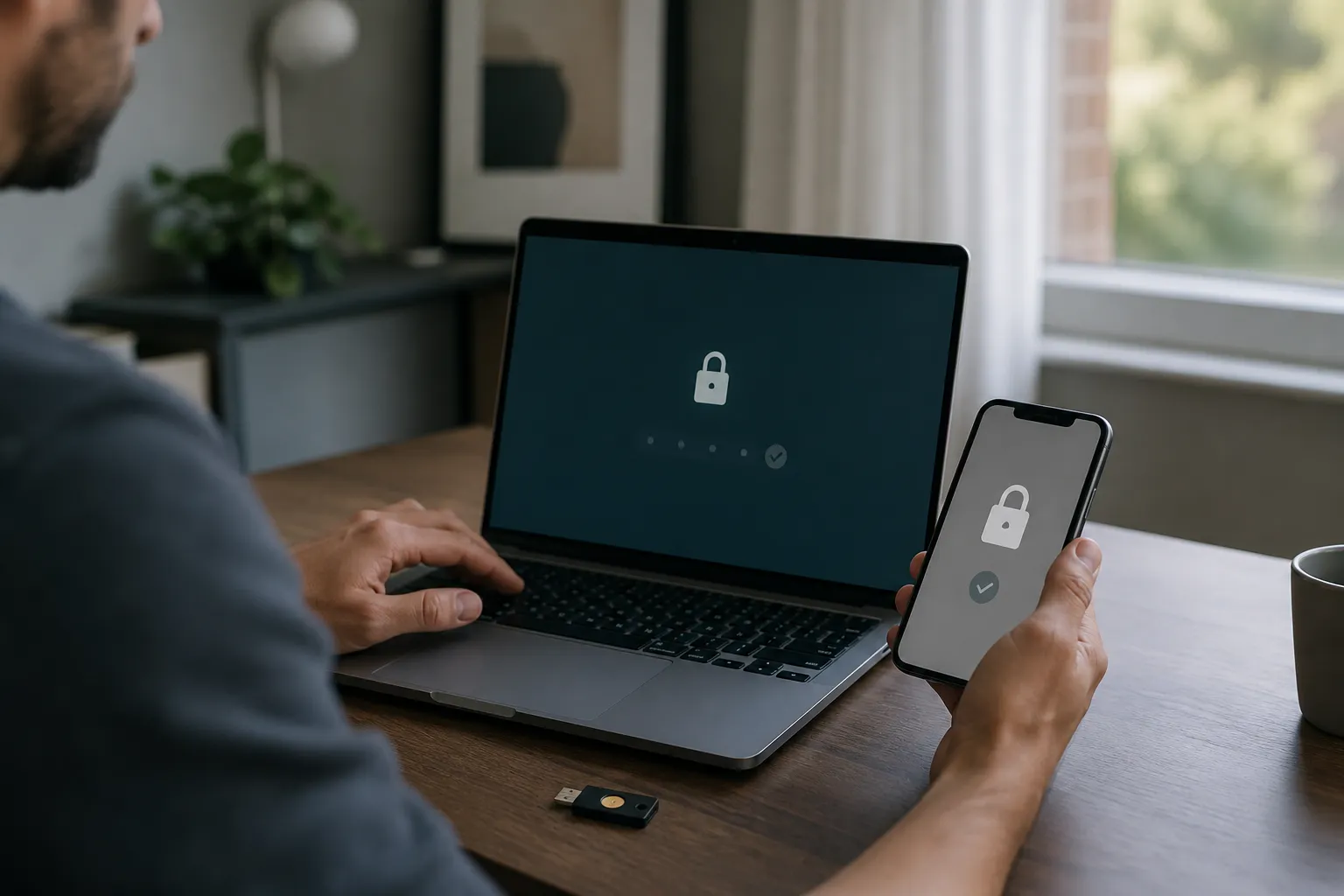
- Prefer passkeys and security keys where services offer them. These sign in methods are tied to the genuine website and are much harder to phish than passwords or text message codes.
- Keep devices and browsers updated so known security holes are closed.
- Limit what you share publicly about your job, reporting lines and travel plans, which feed spear phishing.
- Set payment rules at work. For example, any change to supplier bank details must be confirmed by phone using a number already on file.
Phishing succeeds on speed and trust. Slowing down for one minute and verifying through a channel you control removes most of its power.
No filter or tool catches everything, and nobody is immune to a well timed message on a busy day. The aim is not perfection. It is to make pausing, checking the sender and hovering over links so routine that you do it without thinking.
Frequently asked questions
Written by
Priya NatarajanSenior technology reporter, 11 years covering consumer hardware and startups
Priya Natarajan has reported on personal computing, AI products and early stage funding since 2013, starting at a regional business daily before moving to online tech news. She has covered more than 150 startup funding rounds and tested over 80 laptops and desktops for hands on reviews. She holds a master's degree in journalism and a bachelor's degree in computer science.